SHHH is a sound masking app. Layer up to five natural and ambient sounds, tune each one,
shape the overall mix with an equalizer, and let it play while you sleep, work, relax or enjoy a break from your tinnitus.
01 Quick start
Your first mix in under a minute.
Open the Sounds tab and tap the circle next to a sound to select it.
Select up to five sounds.
Tap the big round Play button at the bottom of the screen.
Tap the 5 of 5 button to open the mixer and balance the sounds against each other.
Happy with it? Tap + Preset to save the mix so you can bring it back any time.
Going to sleep? Set the Timer so the sound stops by itself.
02 Getting around
The bar along the bottom of the screen is always there, whichever screen you are on.
12345
1
Settings. Equalizer, master volume, effects, theme and backups.
See Settings.
2
Timer. Turn the sound off automatically after a set time.
See Timer.
3
Play / Pause. Starts and stops everything you have selected.
It works from every screen and turns into a pause button while sound is playing.
Sounds. Browse the sound library and build your mix.
See Sounds.
03 Sounds
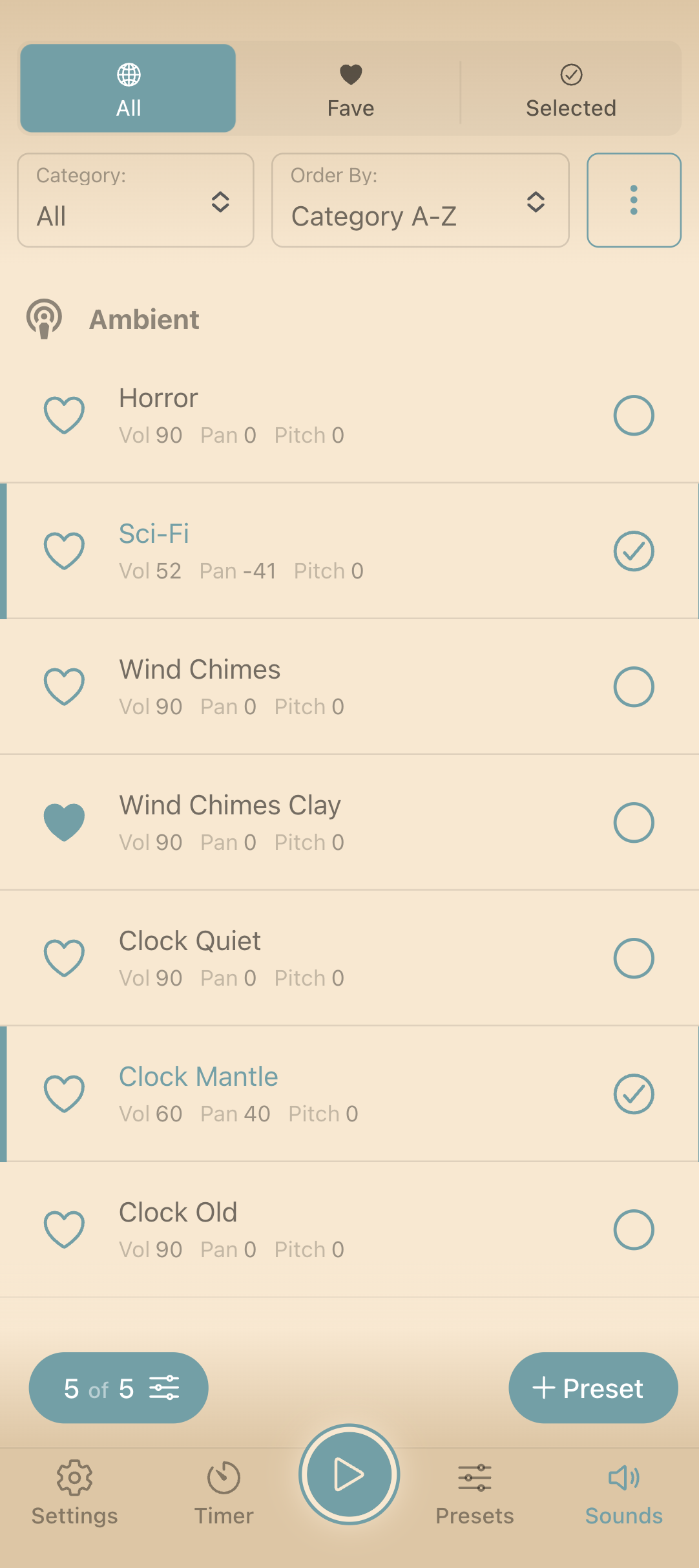
The Sounds tab is where you find sounds, pick the ones you want to hear and fine-tune them.
The sound list
1234567891011
1
View. Switch between All sounds, your favourites
(Fave) and the sounds you have Selected.
2
Category. Show only one kind of sound, such as Water, Rain or Animals.
3
Order By. Change how the list is sorted.
4
More menu. Clear filters, clear your selection or pick random sounds.
See More menu.
5
Category heading. When sorted by category, sounds are grouped under headings.
6
Sound. Its name, with its current Volume, Pan and
Pitch underneath. Long-press the name to open its
settings.
7
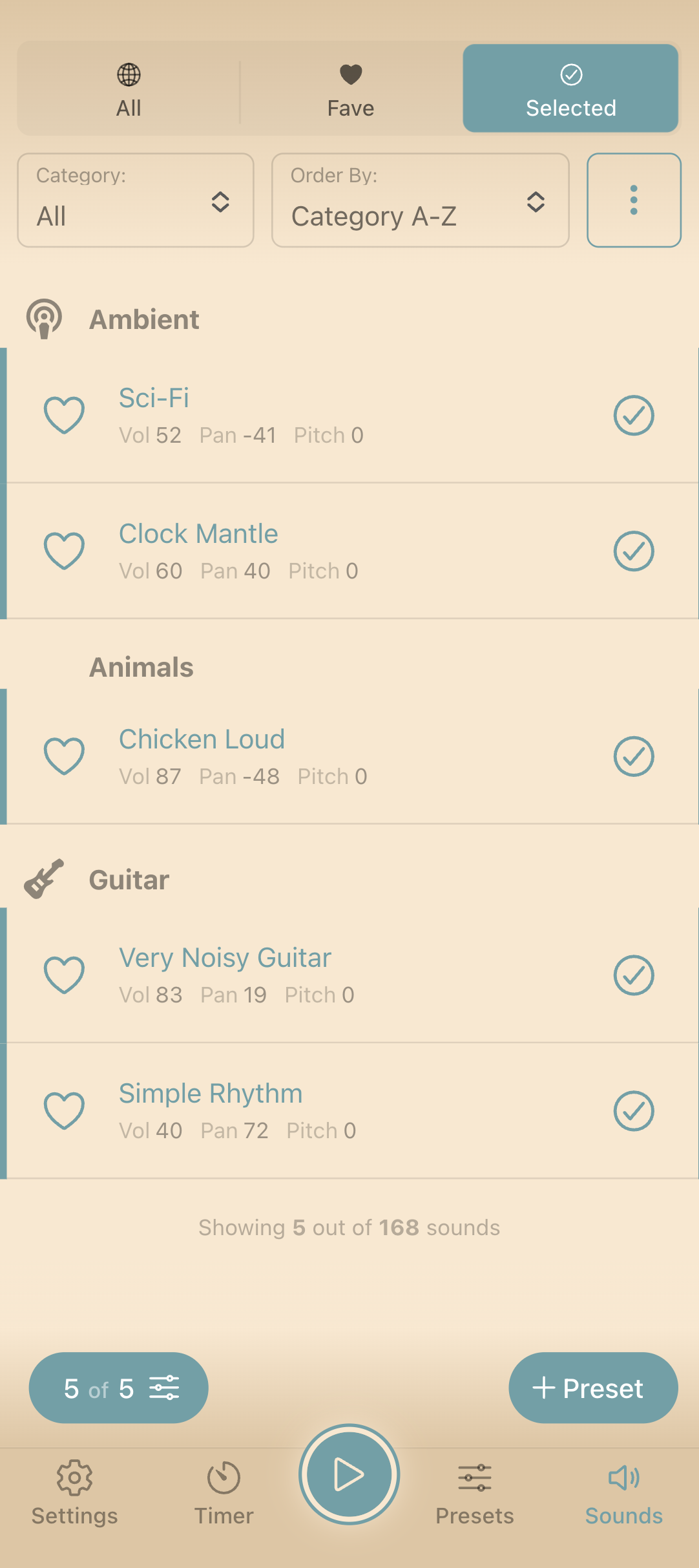
A selected sound. Selected sounds are highlighted with a coloured bar
on the left and a coloured name.
8
Favourite. Tap the heart to add a sound to your favourites. A filled heart
means it is a favourite.
9
Select. Tap the circle to add the sound to your mix (a tick appears),
tap again to remove it.
10
Mixer. Shows how many sounds are selected out of the maximum of five.
Tap it to open the mixer.
11
+ Preset. Save the current mix as a preset.
See Saving a preset.
Tip: The first time you open the Sounds tab, a hint reminds you that you can
long-press a sound to change its settings. Tap Got It to dismiss it.
Fave & Selected views
12
1
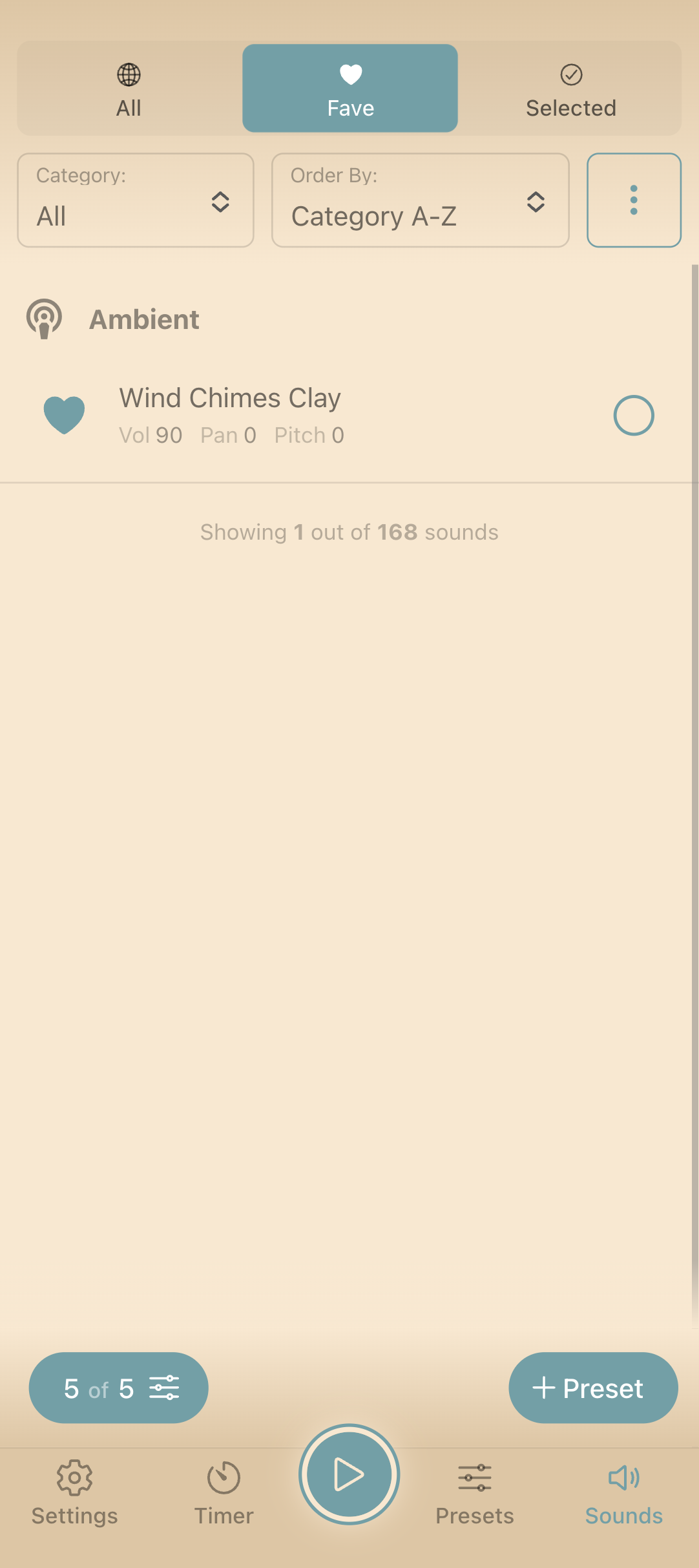
Fave view. Lists only the sounds you have hearted. The
Selected view works the same way and lists only the sounds in your current mix,
which is a quick way to review them (see the screenshot in Getting around).
2
Sound count. The end of the list shows how many sounds match out of
the whole library.
Filtering and sorting
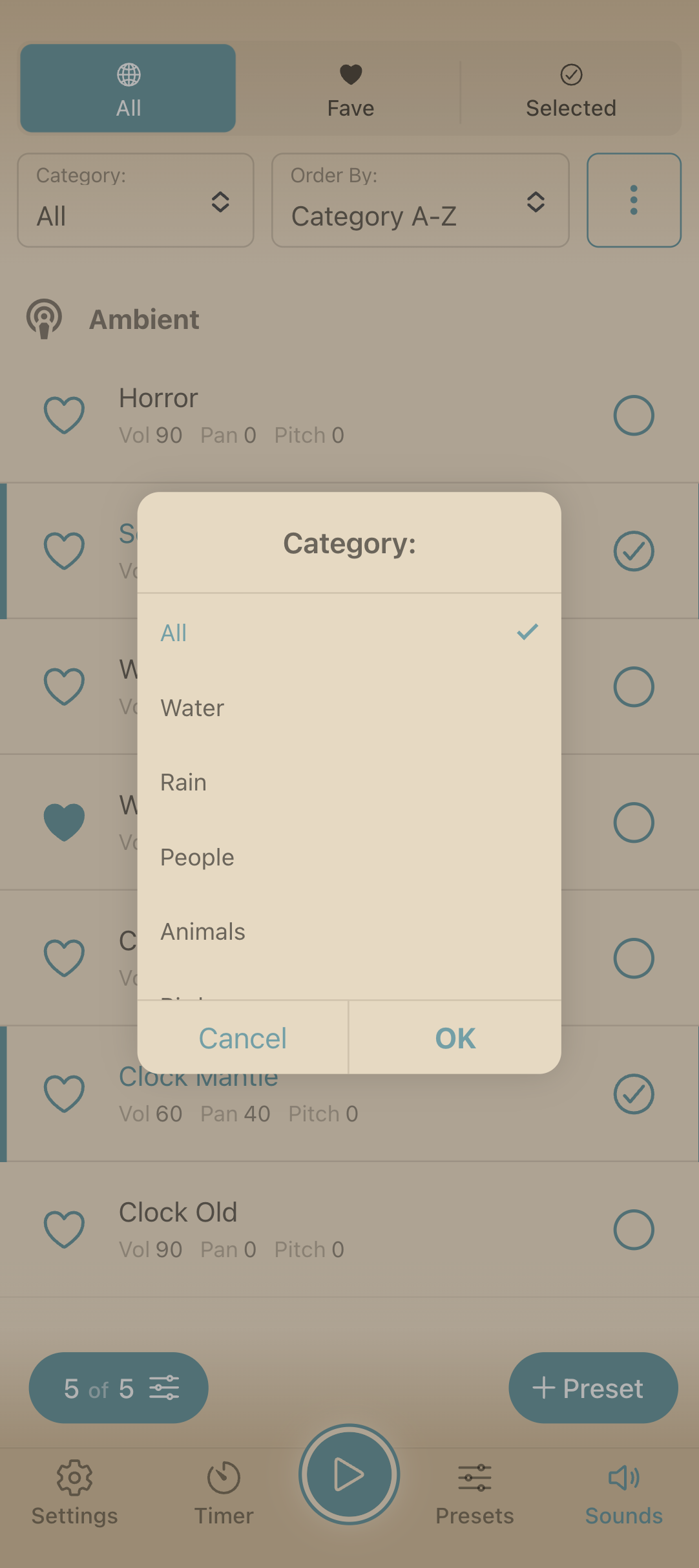
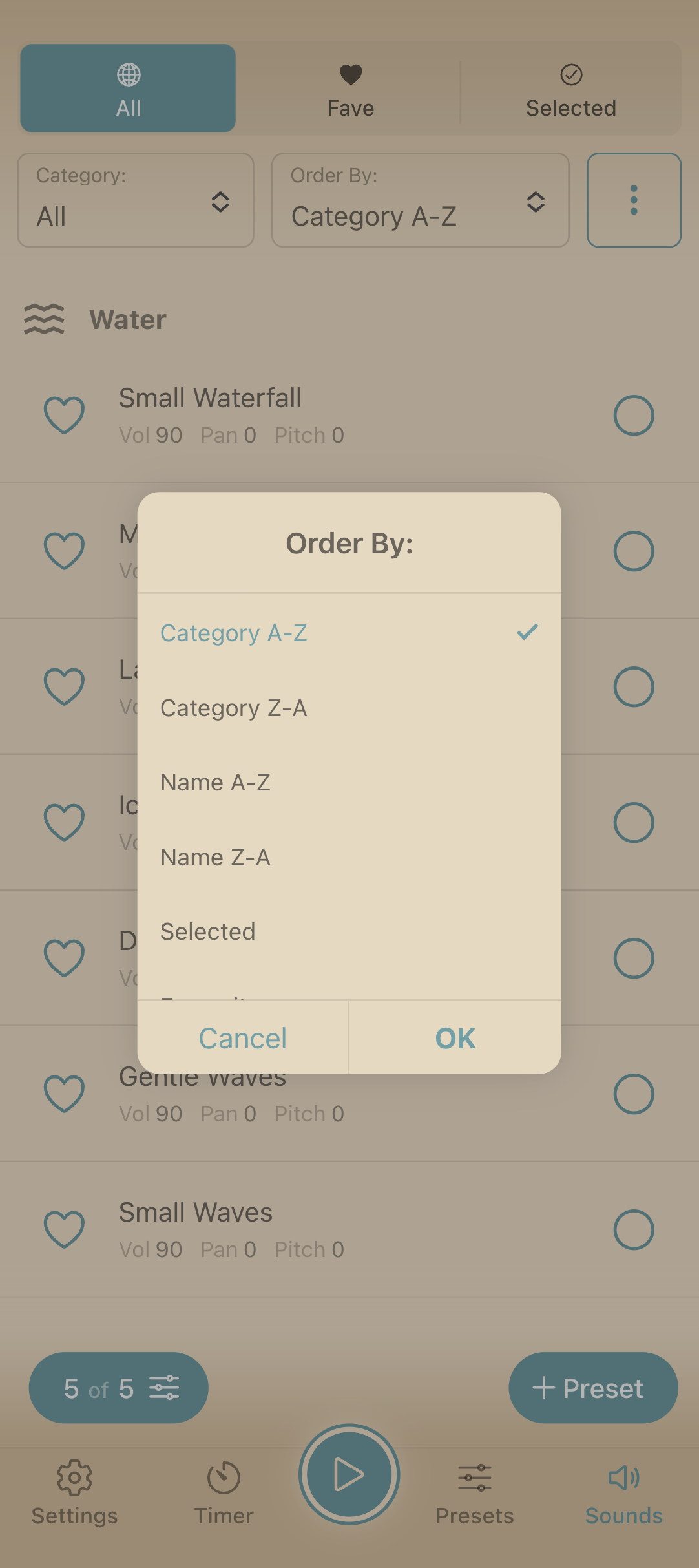
Tap Category or Order By to open a picker. Choose an option and tap
OK. The current choice has a tick next to it.
12
Category picker
Order By picker
1
Current choice. Marked with a tick.
2
More options. The list scrolls; there are more categories below.
Order By
Sorts the list by
Category A-Z / Z-A
Category, grouped under headings (default)
Name A-Z / Z-A
Sound name. Each sound shows its category instead.
Selected
Selected sounds first
Favourites
Favourite sounds first
More menu
123
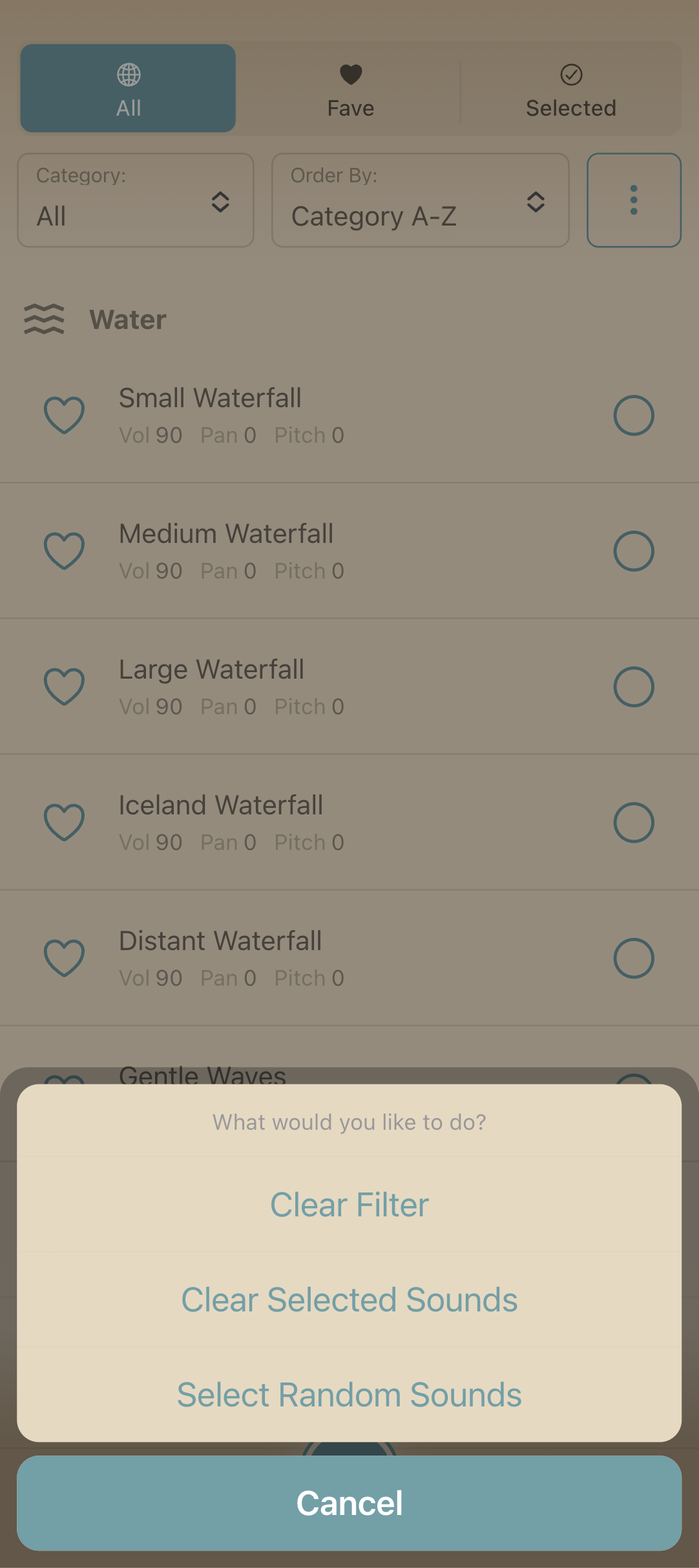
Tap the ⋮ button at the top right of the Sounds tab.
1
Clear Filter. Puts the view back to All sounds, all categories,
sorted Category A-Z.
2
Clear Selected Sounds. Deselects every sound and stops playback.
3
Select Random Sounds. Replaces your mix with five random sounds,
each with random volume, pan and pitch. Great for discovering new combinations.
Sound settings
123456789
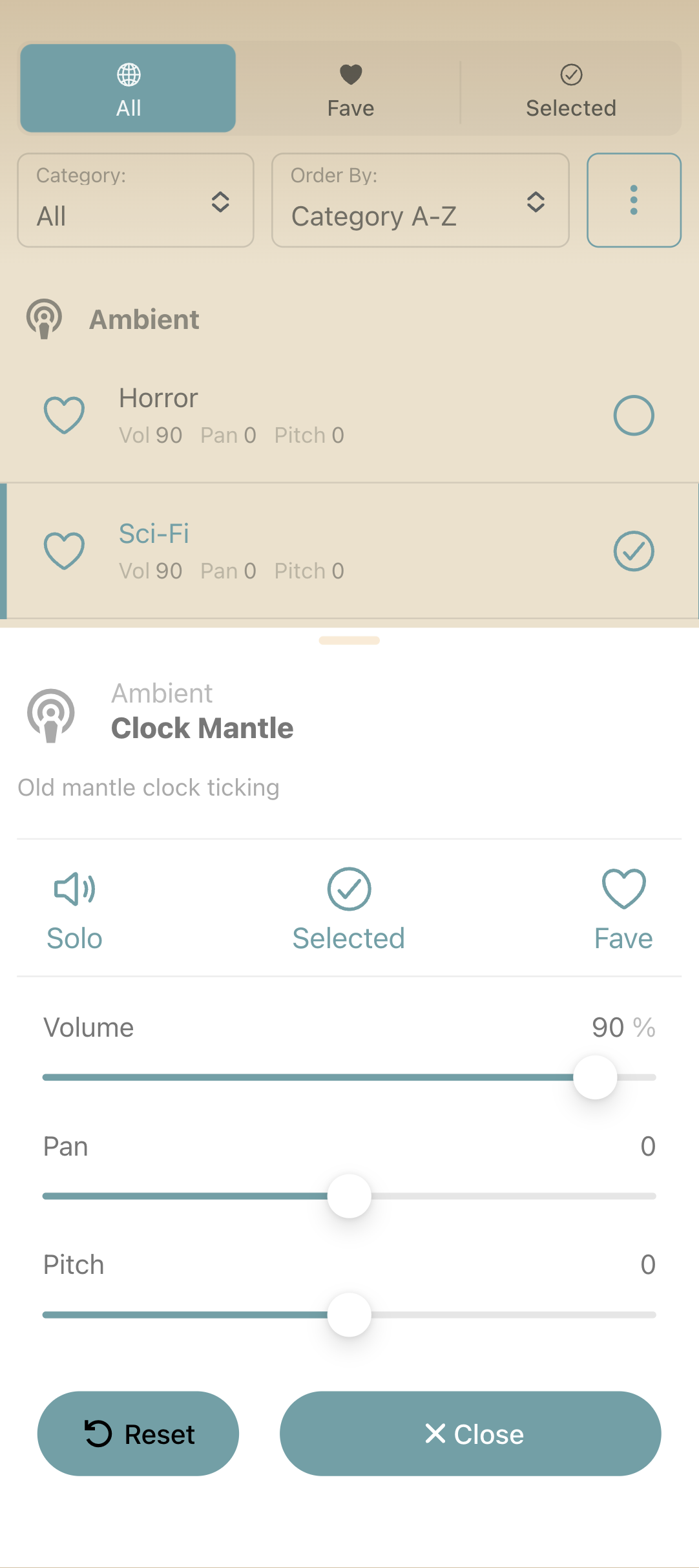
Long-press any sound's name to open its settings panel. Changes are heard straight away.
1
About the sound. Category, name and a short description.
2
Solo. Press and hold to hear only this sound. Let go to stop.
3
Selected. Add the sound to, or remove it from, your mix.
4
Fave. Add or remove it from your favourites.
5
Volume. 0 to 100%.
6
Pan. Moves the sound left or right, from 100% left to 100% right.
0 is the centre.
7
Pitch. Lowers or raises the sound by up to 12 semitones (ST).
8
Reset. Puts this sound's volume, pan and pitch back to their defaults.
9
Close. Closes the panel. You can also swipe it down.
The mixer
1234567891011
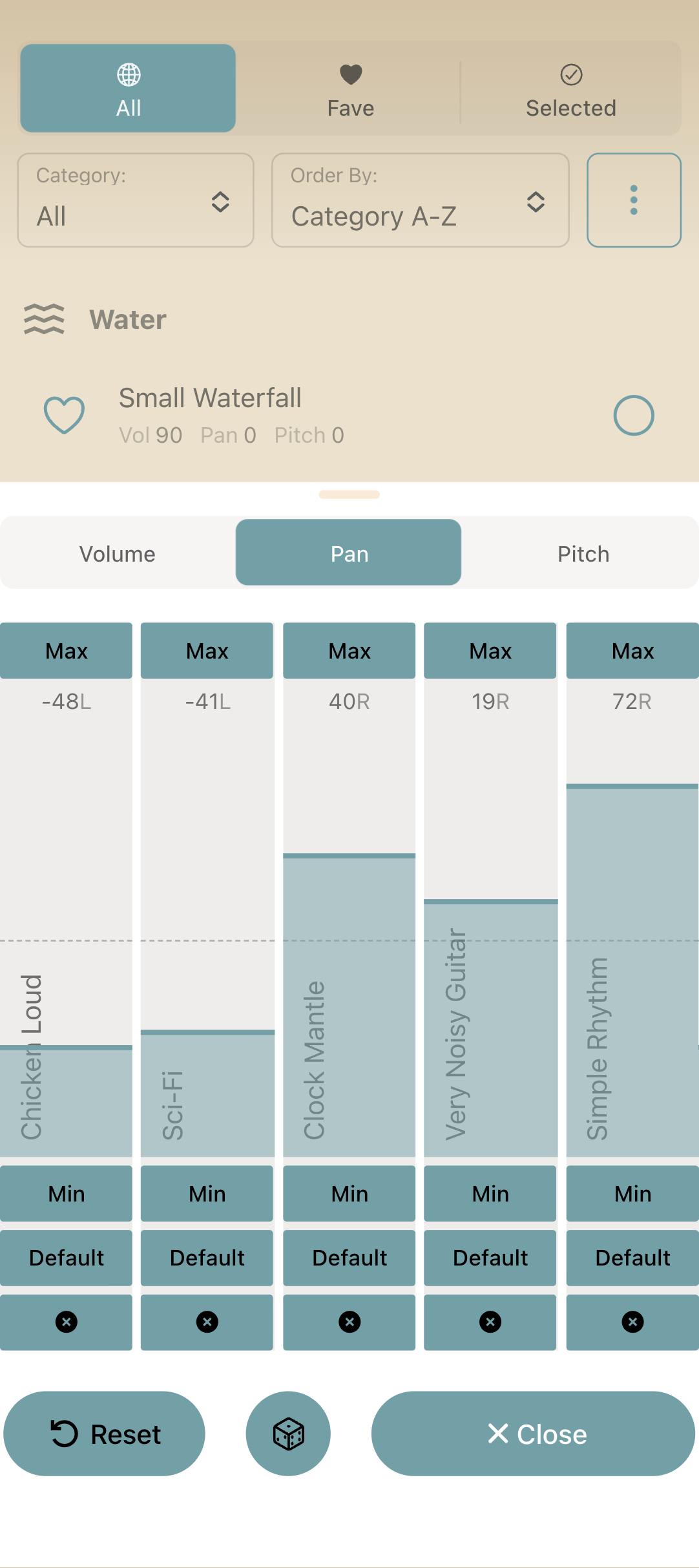
The mixer lets you adjust all your selected sounds side by side. Open it with the
5 of 5 button on the Sounds tab. Each column is one sound.
1
Handle. Swipe down to close the mixer.
2
Parameter. Choose what the faders control:
Volume, Pan or Pitch.
3
Max. Jump straight to the highest value.
4
Current value. Volume in %, pan as L or R, pitch in semitones (ST).
5
Fader. Drag up or down to change the value. The sound's name runs up the
fader. In Pan mode the dashed line marks the centre: above it is right, below it is left.
You can slide your finger across several faders in one go.
6
Min. Jump straight to the lowest value.
7
Default. Put this one value back to its default.
8
Remove. Take the sound out of the mix.
9
Reset. Put every sound back to its default settings.
10
Randomize. Randomize the parameter you are viewing for all sounds.
11
Close. Close the mixer.
Saving a preset
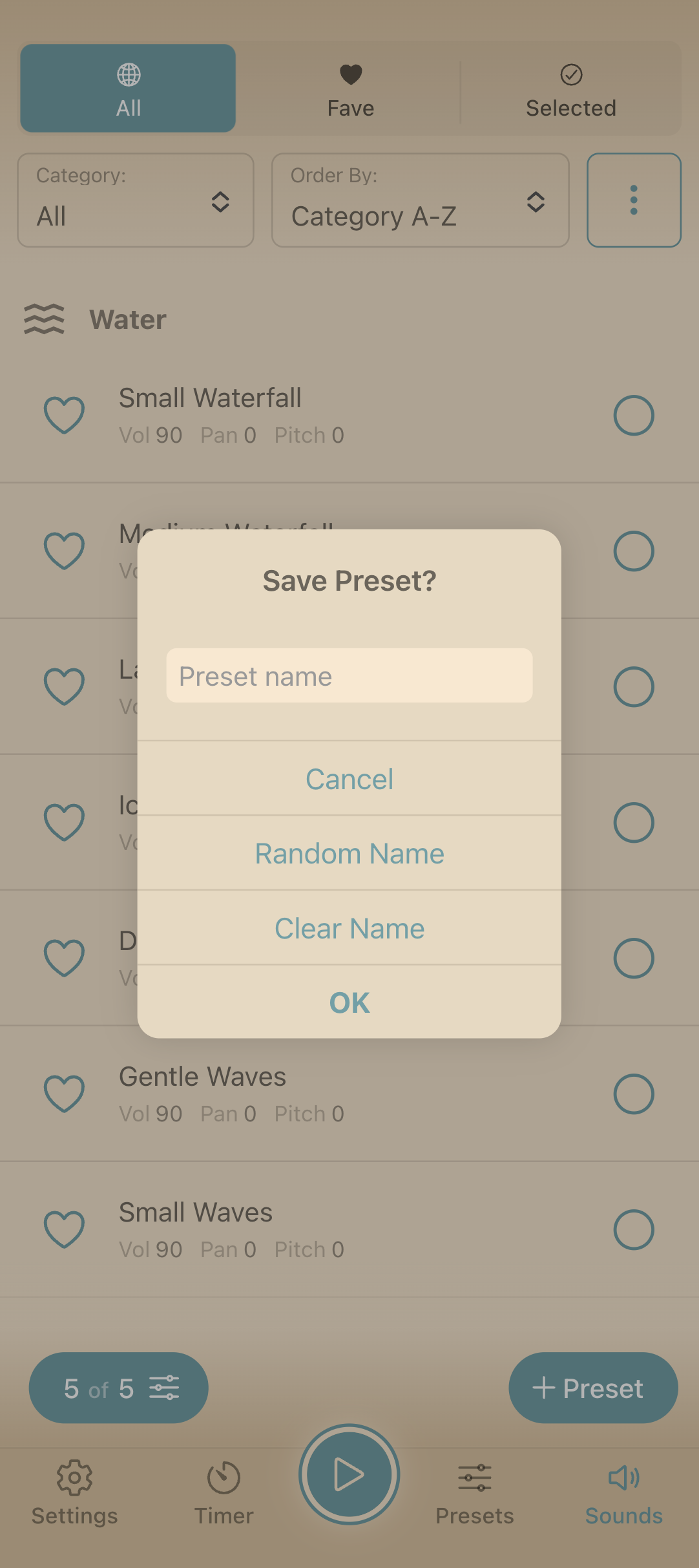
1234
Tap + Preset on the Sounds tab. A preset remembers your selected sounds with their
volume, pan and pitch, plus your current master settings and EQ preset.
1
Preset name. Type a name for your mix.
2
Random Name. Out of ideas? Let the app make one up.
3
Clear Name. Empty the name field.
4
OK. Save the preset. It appears on the Presets tab.
04 Presets
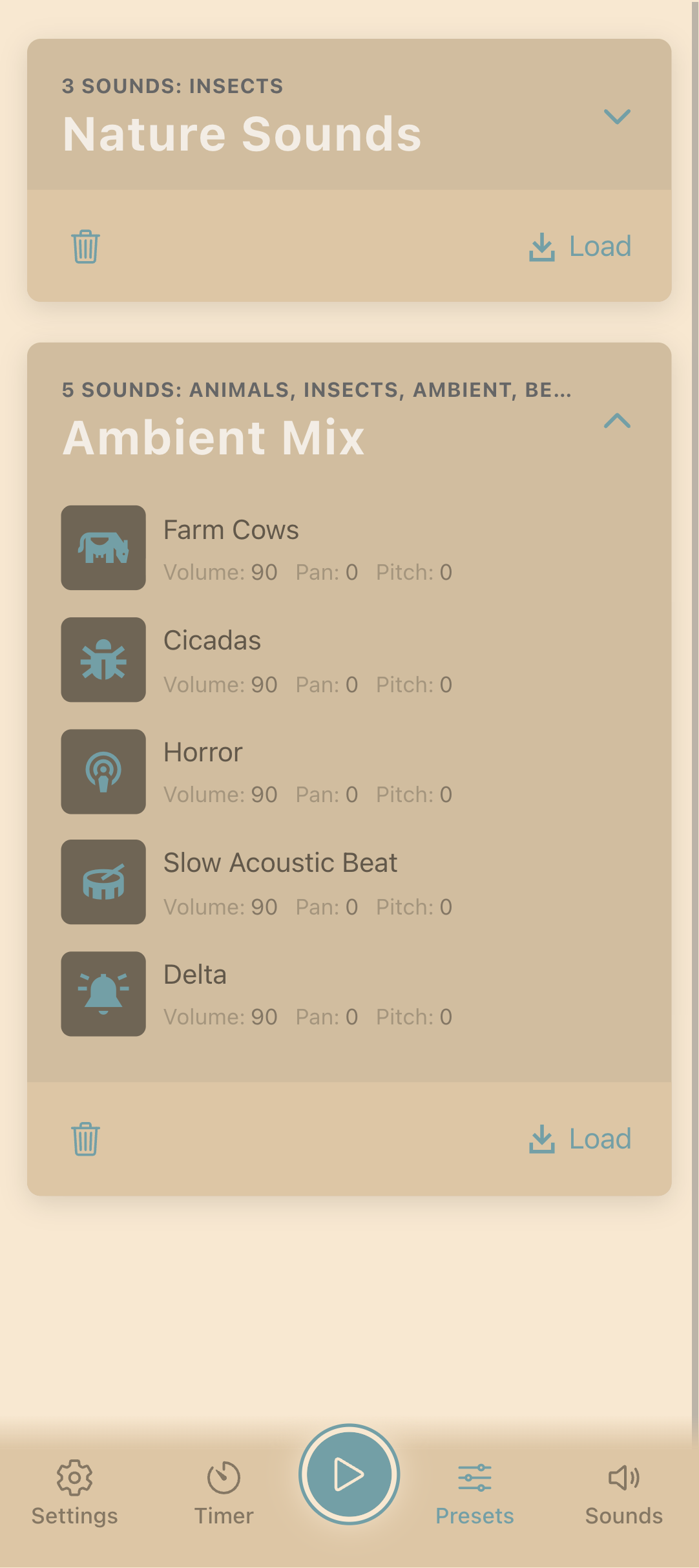
Every mix you save lives here, ready to load with one tap.
12345
1
Preset name and summary. Shows how many sounds the preset has and
which categories they come from. Tap the card header to expand or collapse it.
2
Expand / collapse. Presets start collapsed. The arrow flips when a
preset is open.
3
Delete. Remove the preset. You will be asked to confirm.
4
Load. Replace your current mix with this preset and start playing.
You can choose:
Load with Global Settings — also restores the master settings and EQ preset saved with it.
Load Preset Only — loads the sounds but keeps your current master settings and EQ.
5
Sounds in the preset. Each with its saved settings.
Long-press a sound to change its volume, pan or pitch inside the preset. If the preset
is playing, you hear the change right away.
05 Timer
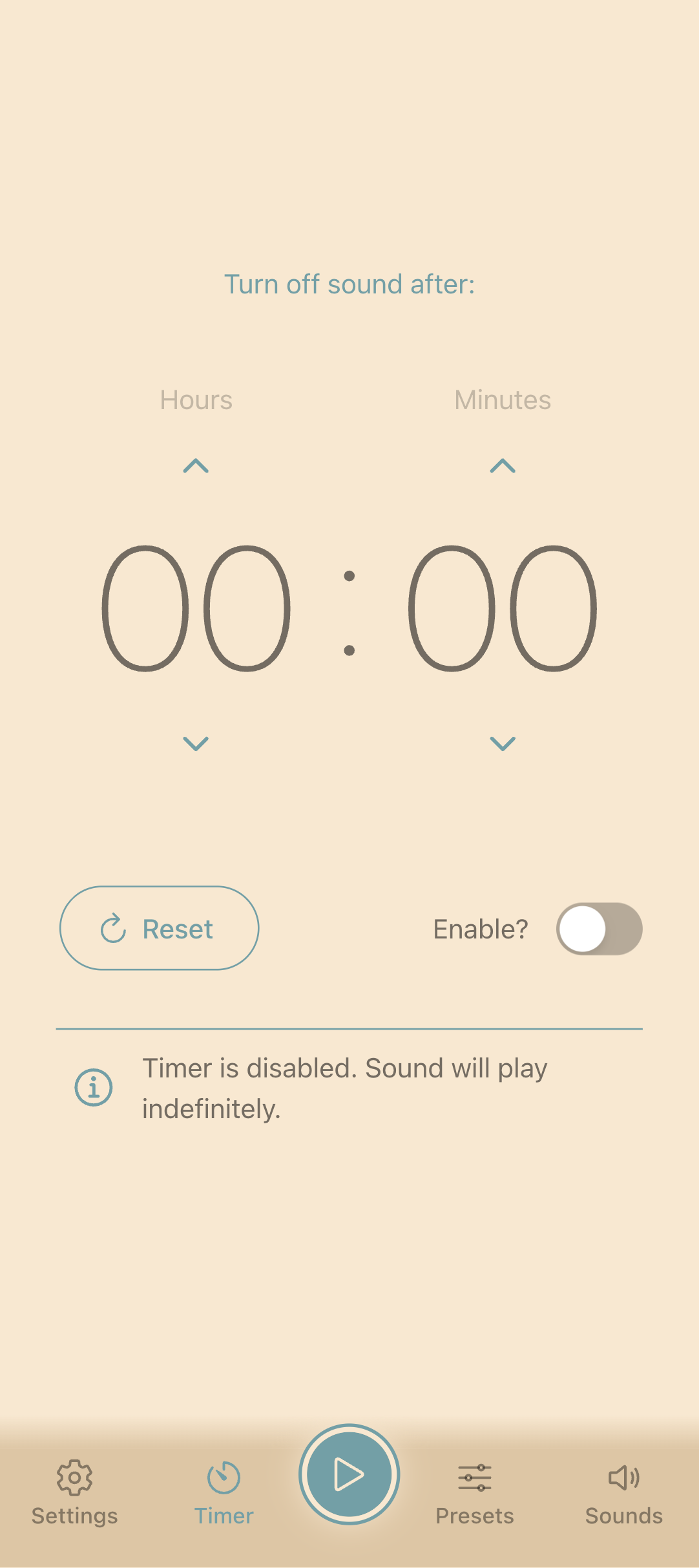
Let the sound switch itself off, for example after you have fallen asleep.
123456
1
Hours. Drag the digits up to increase or down to decrease.
2
Minutes. Works the same way as hours.
3
Arrows. Tap the arrows above and below the digits to change them one step at a time.
4
Reset. Set the timer back to 00:00.
5
Enable. Switch the timer on or off.
6
Status. Tells you what will happen. When enabled, sound pauses after
the set time whenever you press play. When disabled, sound plays until you stop it.
Note: When the timer runs out, the sound pauses and the timer switches
itself off. Turn it on again for the next session.
06 Settings
Settings on this tab apply to the whole mix, on top of each sound's own settings.
Equalizer & master sound
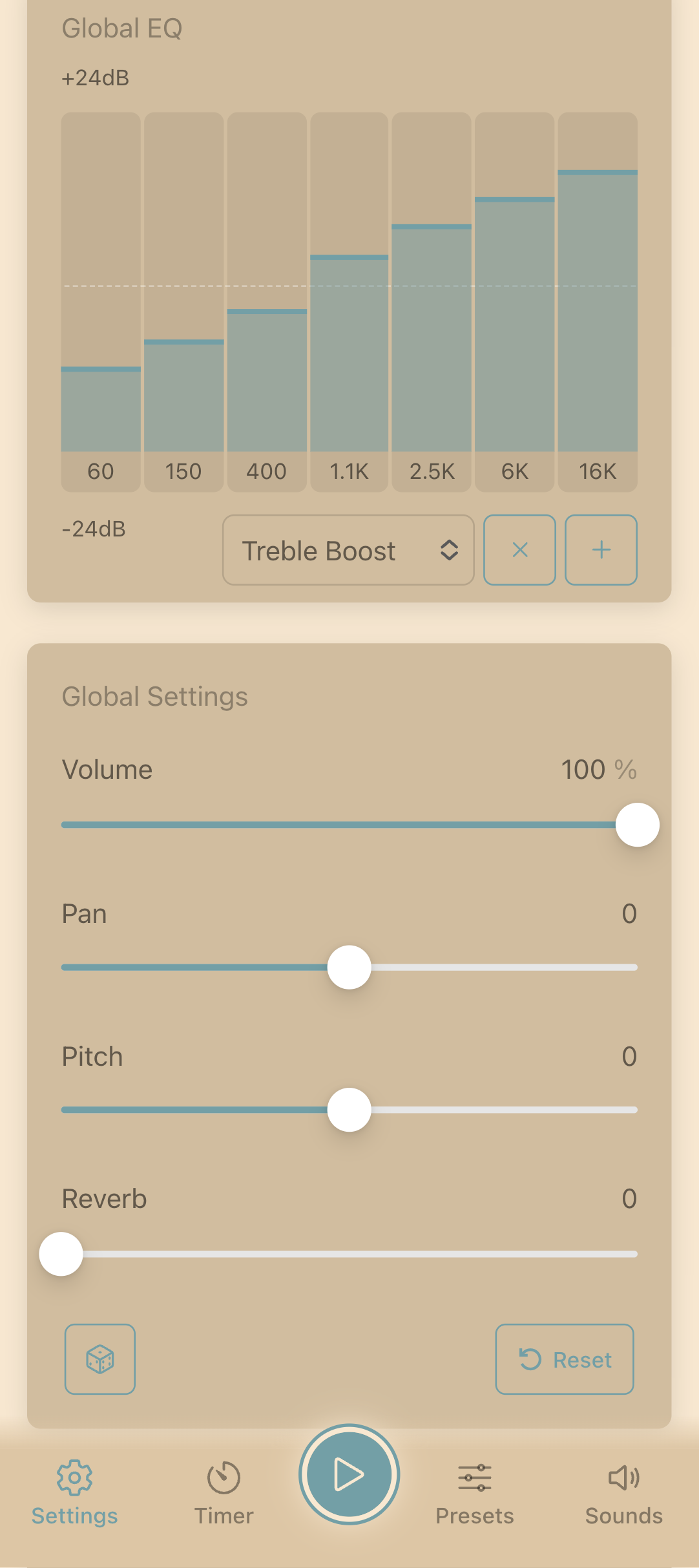
12345678910
1
Equalizer. Seven bands from deep bass (60 Hz) to high treble (16 kHz).
Drag a band up to boost it or down to cut it, by up to 24 dB. The dashed line is 0 dB (no change).
Slide across several bands to draw a curve.
2
EQ preset. Pick a ready-made curve such as Treble Boost, or one you saved.
3
Delete EQ preset. Removes the selected preset you saved yourself.
Built-in presets cannot be deleted.
4
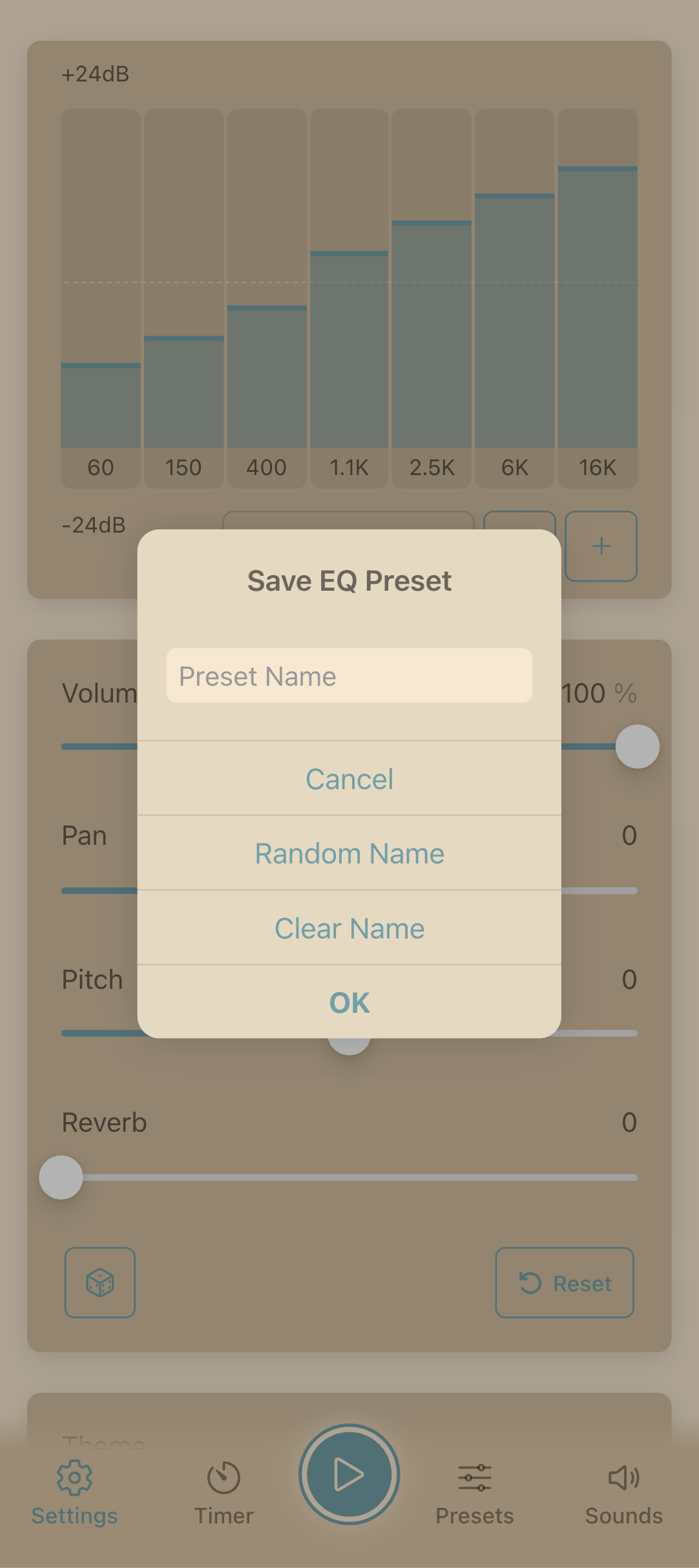
Save EQ preset. Save the current curve under a name. The dialog works
just like saving a sound preset.
5
Volume. Master volume for the whole mix.
6
Pan. Shift the whole mix left or right.
7
Pitch. Lower or raise the whole mix by up to 12 semitones.
8
Reverb. Adds a sense of space, from 0 (dry) to 100%.
9
Randomize. Random master volume, pan, pitch and reverb.
10
Reset. Put the master settings back to their defaults.
Saving an EQ preset
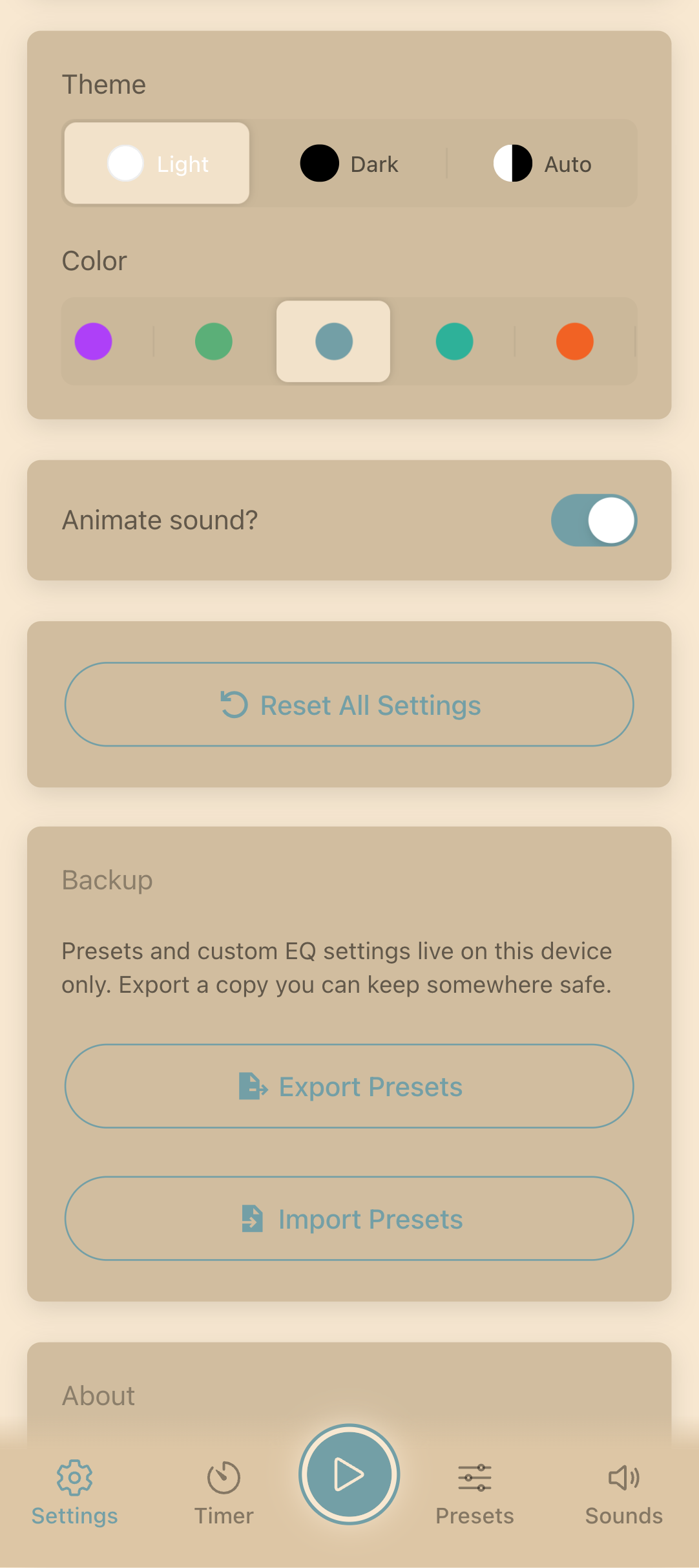
Appearance, backup & about
111213141516
1718
11
Theme.Light, Dark,
or Auto to follow your phone's setting.
12
Color. Pick the accent colour used for buttons and highlights.
Swipe sideways to see more colours.
13
Animate sound. Slowly and gently varies the volume of each sound so the
mix feels more natural and less like a loop.
14
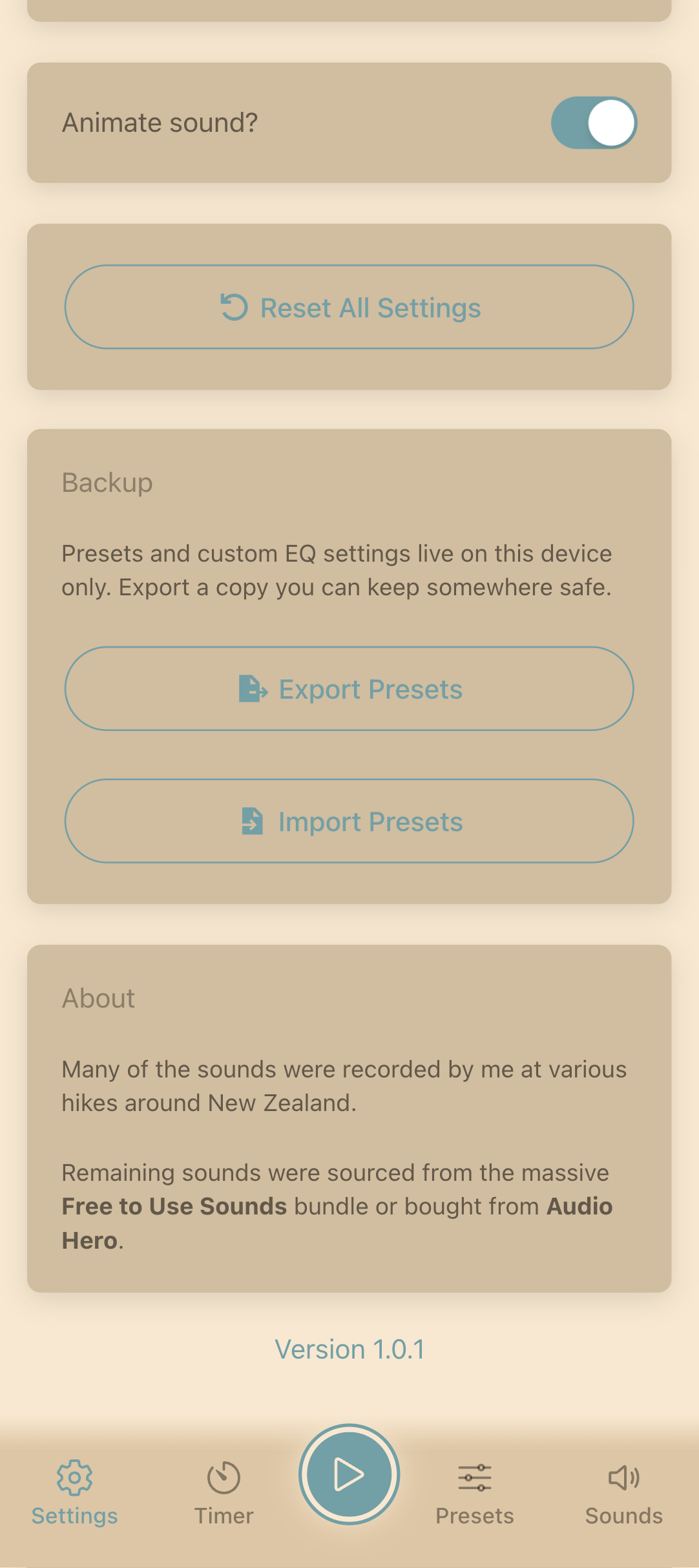
Reset All Settings. Puts everything on this tab back to its defaults.
15
Export Presets. Saves your presets and custom EQ presets to a file
you can keep somewhere safe.
16
Import Presets. Loads presets from an exported file. Importing adds to
what you have; it never removes presets already on your phone.
17
About. Where the sounds come from.
18
Version. The version of the app you are running.
Back up your presets. Presets and custom EQ settings are stored only on your
phone. Export a copy now and then, especially before changing phones.
07 Tips & FAQ
Why can't I select another sound?
You can mix up to five sounds at once. Remove one (tap its tick, or use the remove button in the mixer)
before adding another.
How do I change a single sound?
Long-press its name on the Sounds tab to open its settings. To compare several
sounds at once, use the mixer.
Something sounds too harsh or too boomy.
Use the equalizer on the Settings tab: lower the right-hand bands for harshness, the left-hand
bands for boominess.
A preset says some sounds are not available.
The preset uses a sound that is not in this version of the app. The preset keeps it, so it plays again if the
sound returns in a later version.
I want something new.
Try ⋮ → Select Random Sounds on the Sounds tab, or the dice buttons
in the mixer and on the Settings tab.

 1
2
3
4
5
 1
2
3
4
5
6
7
8
9
10
11
 1
2
 1
2
 1
2
3
 1
2
3
4
5
6
7
8
9
 1
2
3
4
5
6
7
8
9
10
11
 1
2
3
4
 1
2
3
4
5
 1
2
3
4
5
6
 1
2
3
4
5
6
7
8
9
10
 11
12
13
14
15
16
 17
18